
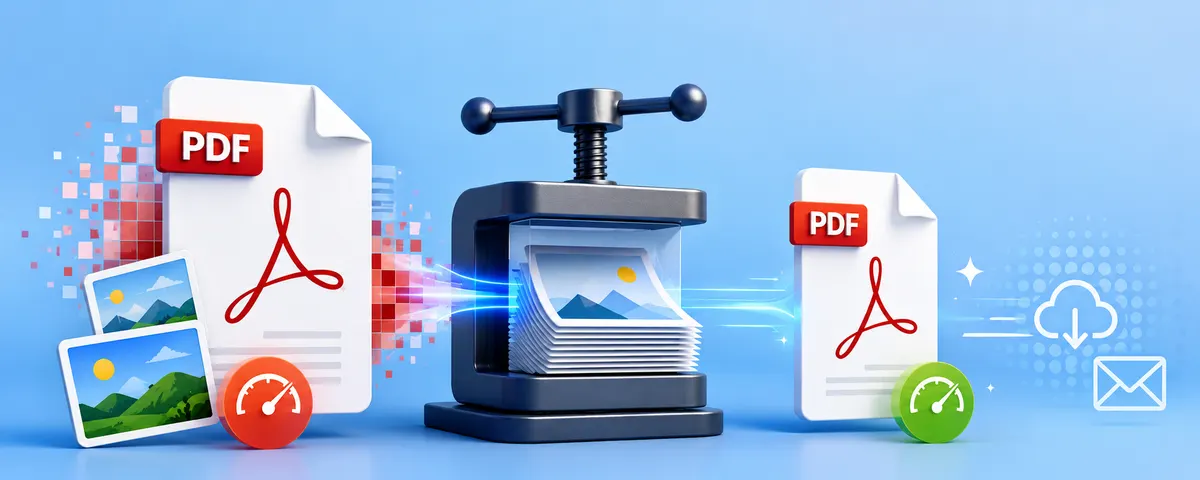
You've finished a report, scanned some documents, or received a PDF that's 50 MB when it should be 2 MB. Email won't accept it. The upload form rejects it. Sharing it is a nightmare. PDF compression is one of those problems everyone runs into, and most people don't know how easy it is to fix.
Why PDFs Get So Large
PDFs can bloat for several reasons:
- High-resolution embedded images — the most common cause. A PDF created from a Word doc or exported from design software often embeds images at print resolution (300 DPI), which is unnecessarily large for screen viewing.
- Unoptimised fonts — some PDFs embed entire font files rather than font subsets.
- Redundant data — revisions, annotations, and metadata left over from editing.
- Scanned documents — a scanner set to 600 DPI creates enormous files; 150–200 DPI is usually enough for a readable scan.
How PDF Compression Actually Works
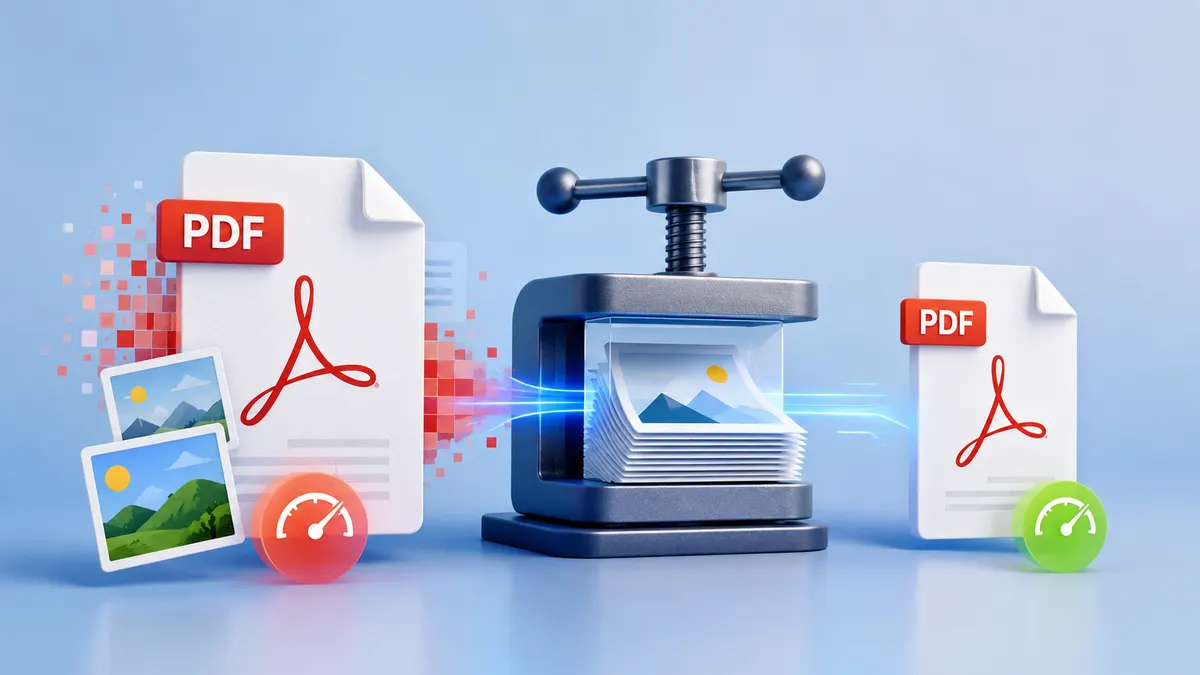
PDF compression tools work primarily by recompressing the images embedded inside the PDF. The text layer itself is already very small. When a compressor reduces a 20 MB PDF to 3 MB, it's almost always by applying JPEG compression to the embedded images.
This is why "lossless" PDF compression is mostly a marketing term — what the tool is actually doing is reducing image quality slightly. At moderate compression settings, this is usually invisible to the human eye. At aggressive settings, you'll start to see artefacts on photographs and soft edges on diagrams.
Choosing the Right Compression Level
Most compression tools offer a spectrum from light to aggressive:
- Low / Medium — applies gentle JPEG compression to images, typically targeting 150 DPI. File size reduction of 30–60%. Visually identical to the original for most documents. Use this for reports, presentations, and documents you'll be printing.
- Strong — targets around 100 DPI. Reduction of 60–80%. Good for email attachments where printing quality isn't needed. Text remains sharp; photographs may show slight softness.
- Extreme — targets around 72 DPI. Reduction of 70–90%. Screen-only use. Photographs will noticeably degrade; avoid for anything with detailed images. Good for archival scanning when storage space matters.
PDF24x's compressor lets you choose between three levels and shows you the output file size after compression.
When Compression Won't Help Much
If your PDF consists mainly of text with no or few images, compression will have minimal effect. Text in a PDF is already encoded as small vector data. A 10 MB text-only PDF is usually large because of embedded fonts or redundant metadata, not images.
In these cases, try "Save As" or "Export as PDF" from the original application (Word, InDesign, etc.) and look for options like "Reduce File Size" or "Optimised PDF." These regenerate the PDF more cleanly than post-processing compression.
Compressing a Scanned PDF
Scanned documents are essentially PDFs containing one large image per page. They compress very well with aggressive settings because the original scan resolution (often 300–600 DPI) is far higher than needed for reading on screen.
For scanned documents: use Strong compression if you need occasional printing quality, Extreme if it's screen-only archiving. A 50-page 600 DPI scan that's 80 MB can often be brought under 5 MB with extreme compression while remaining fully readable.
Compressing PDFs for Email
Email providers have varying attachment limits:
- Gmail: 25 MB per email
- Outlook: 20 MB per email
- Many corporate email systems: 10 MB or less
For most documents, Medium compression will bring you well under any of these limits. If you're sending a document that was created from photos (a portfolio, a photo book PDF), you may need Strong or Extreme.
Keeping Your Files Private When Compressing
Many popular PDF compression sites — including some very well-known ones — upload your PDF to their servers for processing. For anything containing personal information, financial data, legal documents, or business materials, this is a significant privacy risk.
PDF24x's compression tool runs entirely in your browser. Your PDF is processed by JavaScript on your own device and is never sent to any server. This is the safest approach for sensitive documents.
Batch Compressing Multiple PDFs
If you need to compress many PDFs, browser-based tools let you process them one at a time efficiently. For bulk compression of hundreds of files, command-line tools like Ghostscript (free, open source) are more practical:
gs -sDEVICE=pdfwrite -dCompatibilityLevel=1.4 -dPDFSETTINGS=/screen -dNOPAUSE -dQUIET -dBATCH -sOutputFile=output.pdf input.pdfReplace /screen with /ebook (150 DPI), /printer (300 DPI), or /prepress (highest quality) to control the compression level.
Summary
PDF compression is nearly always an image compression problem in disguise. Medium compression is invisible to the eye and cuts most PDFs by 50% or more. Use browser-based tools for privacy-sensitive documents. For text-heavy PDFs that resist compression, regenerate from the original application instead.
Related guides: How to reduce PDF file size for email · How to merge and split PDFs
, faqs: [ { question: "Does compressing a PDF reduce quality?", answer: "It depends on the compression level. For text-heavy PDFs, compression rarely affects readability. For image-heavy PDFs, higher compression levels reduce image quality noticeably. Medium compression is typically invisible to the eye." }, { question: "Why is my PDF so large?", answer: "Large PDFs are usually caused by high-resolution embedded images, scanned pages, or embedded fonts. A PDF containing scanned document pages is essentially a collection of images, which explains why scan-based PDFs are often much larger than text-based ones." }, { question: "Why is my compressed PDF still large?", answer: "If the PDF contains very few or no images, there is little for compression to act on. Text, vector graphics, and already-compressed image data cannot be significantly reduced. In these cases, regenerating the PDF from the original source application at lower quality settings is more effective." }, { question: "How small should a PDF be for email?", answer: "Most email providers allow attachments up to 10–25MB. For reliable delivery across all services, aim for under 10MB. For widely-distributed documents, under 5MB is a practical target." }, { question: "Does PDF compression change the content?", answer: "No. Compression only affects how data is stored. Text, layout, and structure remain unchanged. Image quality may reduce at higher compression levels, but content is not removed or altered." }, ]